Setting Up Materio MCP for Claude and ChatGPT
Your AI assistant can now read your Materio notes, pull up question banks, and answer from your actual syllabus - not just the internet. We're launching MCP connectors for Claude and ChatGPT, and here's how to get started.
Materio’s MCP connectors let Claude and ChatGPT reach directly into the Materio library during your conversation. Your AI can search resources, read your subject notes and question banks, and answer based on your actual course material — not just whatever is on the internet.
This guide covers how to connect both, and what you can do once you’re set up.
Connecting ChatGPT
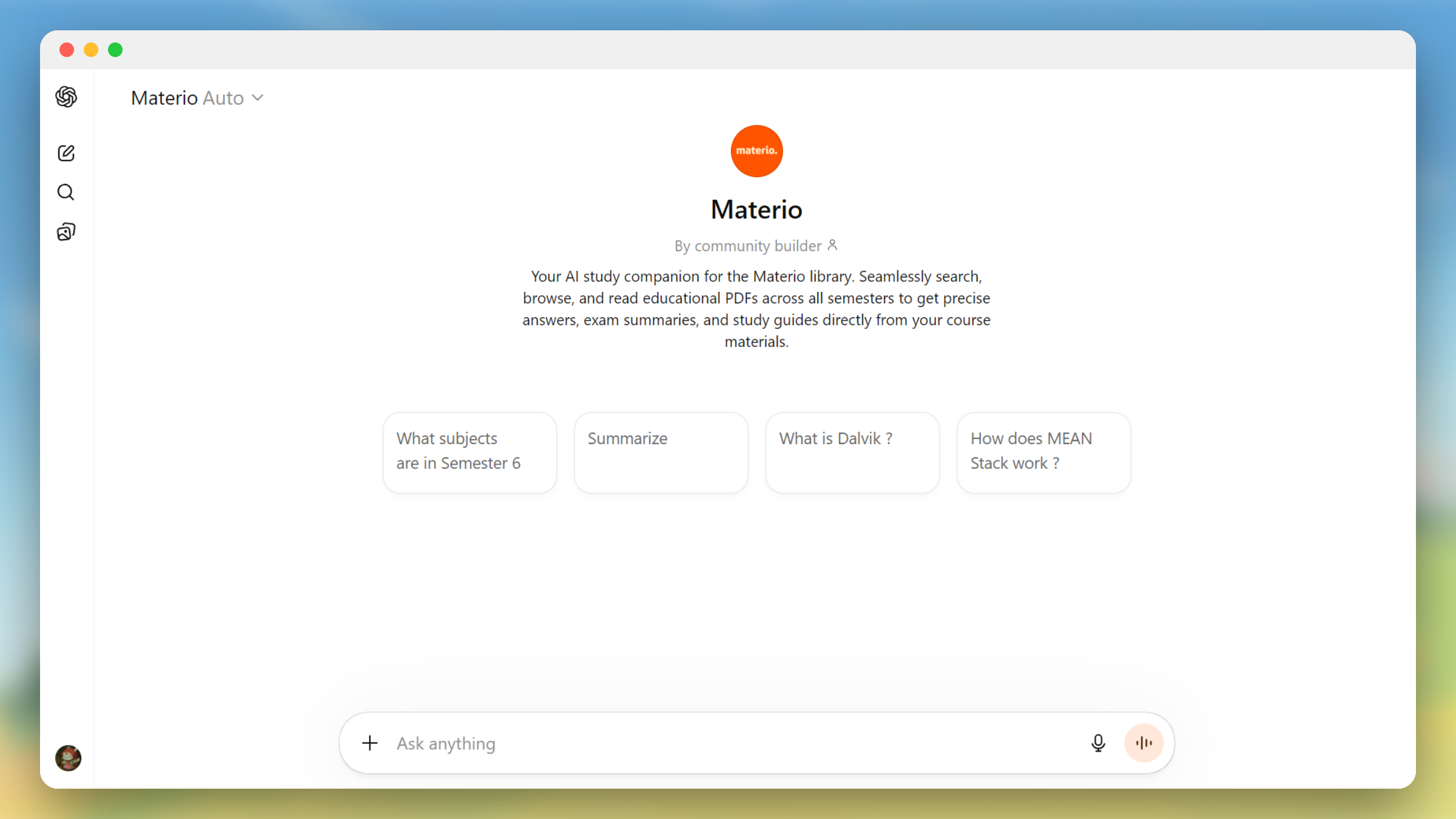
The ChatGPT connector is the simpler of the two. Materio is available as a custom GPT in the GPT Store, with the MCP integration built in.
Step 1. Open the GPT Store inside ChatGPT and search for Materio, or go directly to: MaterioGPT
Step 2. Click Start Chat. That’s it — no configuration required.
Every conversation you open through the Materio GPT has full access to the library automatically.
Connecting Claude
The Claude connector uses MCP (Model Context Protocol). Remote MCP connectors and custom connectors are still in beta and not yet available to all users. Free tier users are also limited to one active custom connector at a time, so keep that in mind.
Option 1 — Custom Connector (Beta)
If you have access to Claude’s custom connector feature, this is the most straightforward path — no scripts, no config file editing.
Open Claude and navigate to the Connectors tab, then click Add Custom Connector.
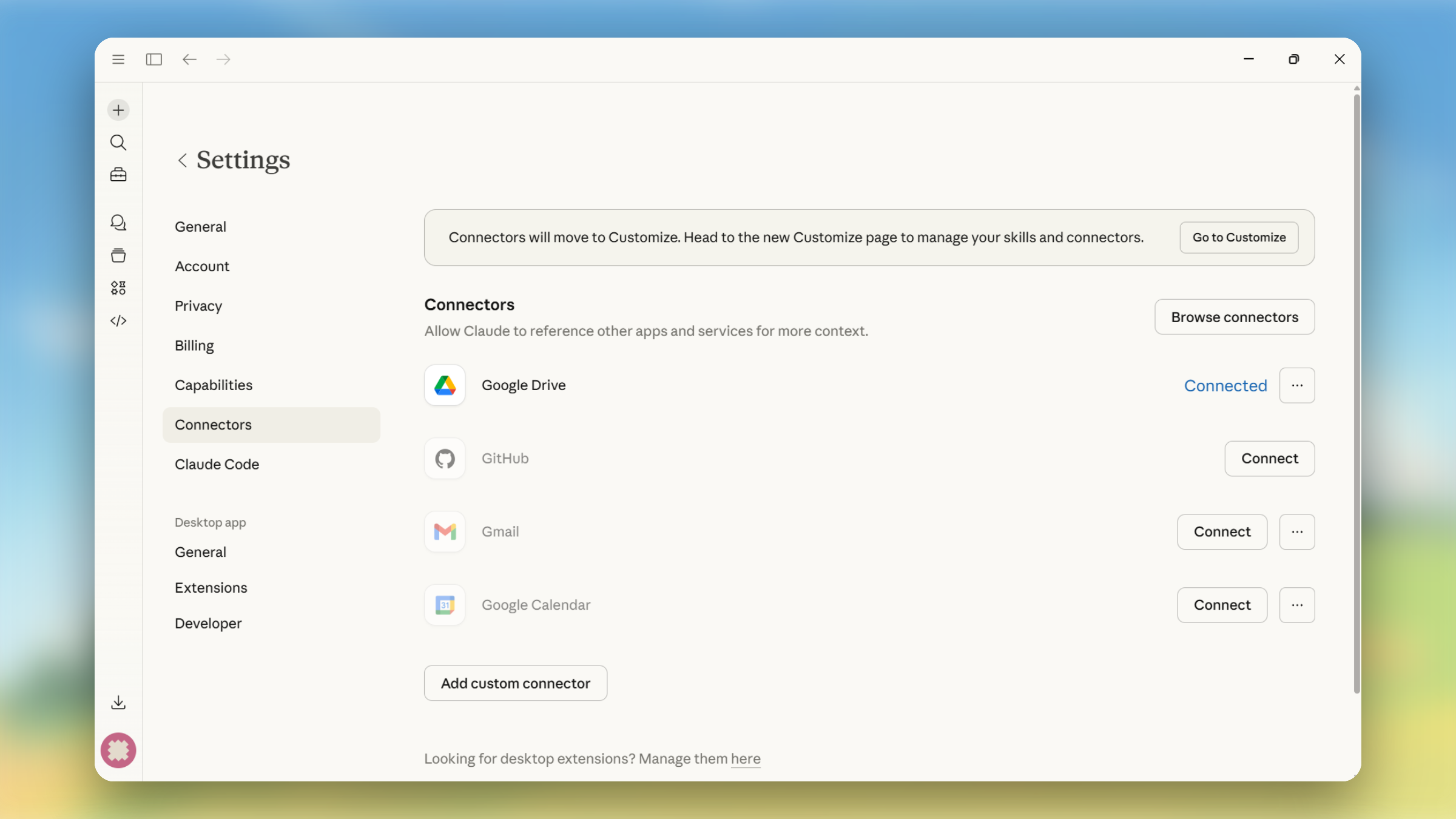
Enter a name (e.g. “Materio”) and paste the following as the Remote MCP Server URL: https://materiomcp.vercel.app
Click Add and you’re done.
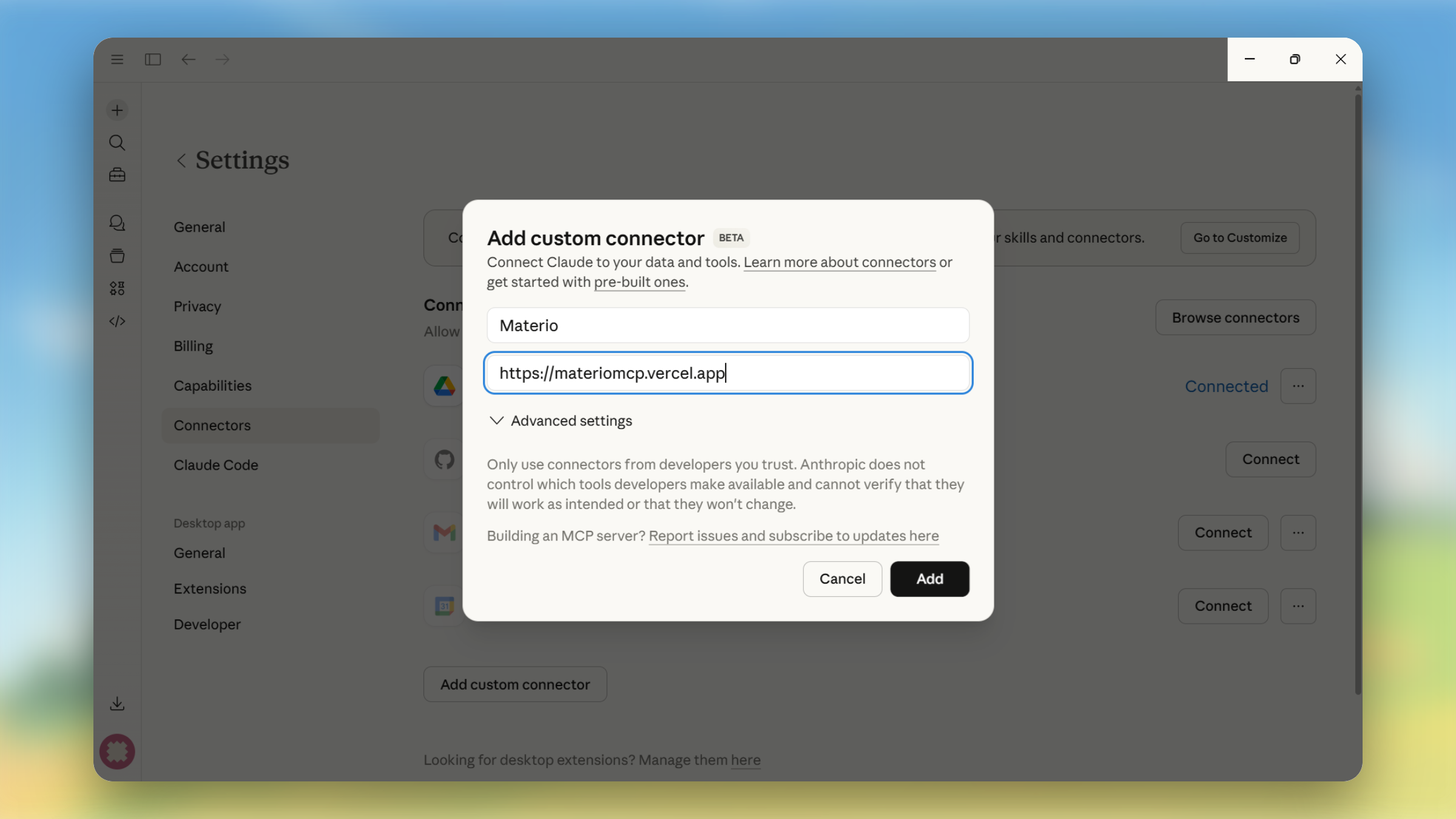
Set tool permissions to Always Allow for a smoother experience.
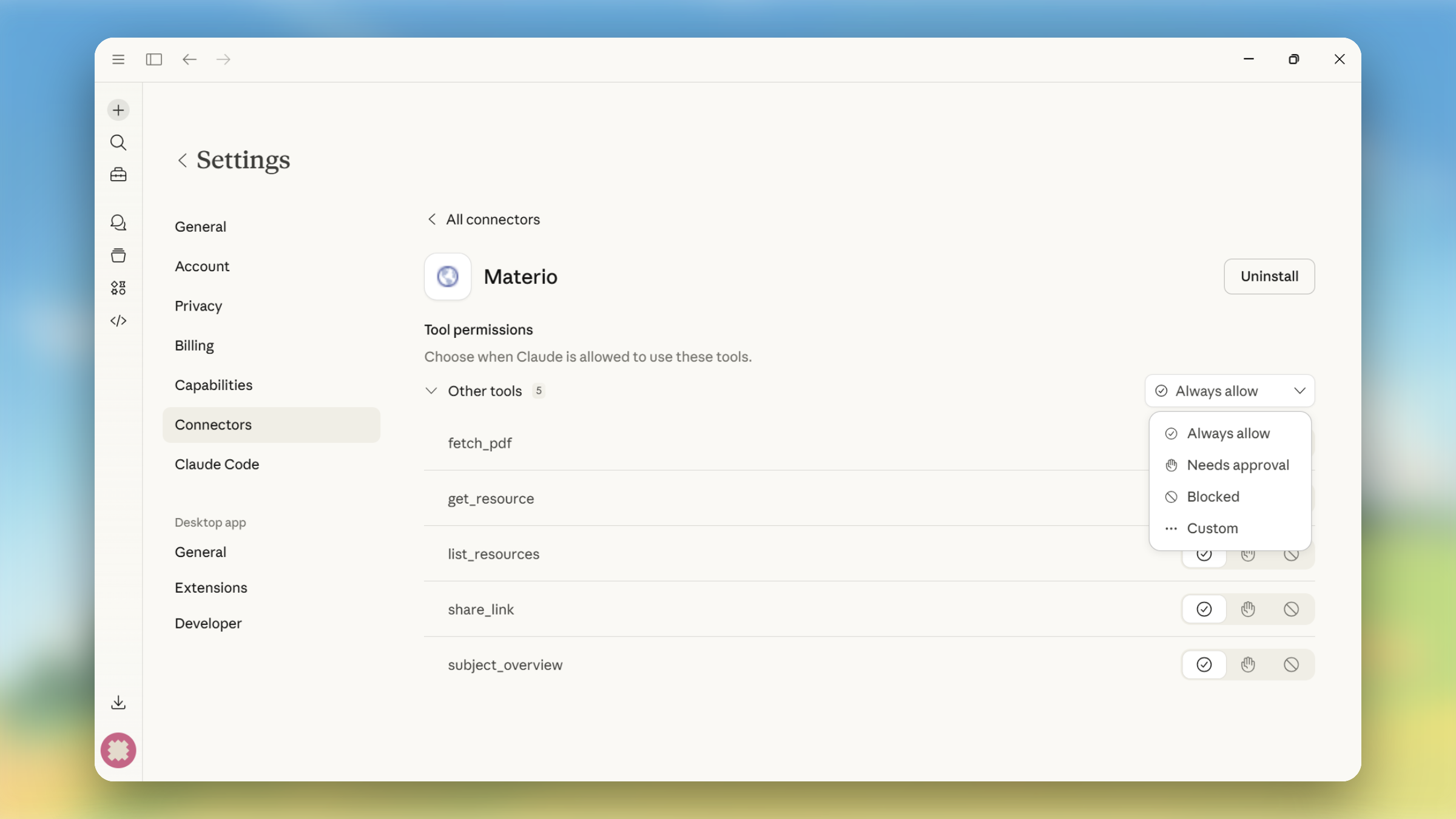
[!NOTE] Custom connectors are currently in beta and may not be available to all Claude users yet.
Options 2 and 3 require the Claude Desktop app to be installed. If you don’t have it, download it from claude.ai/download. Option 1 is the recommended path for better experience across platforms.
Option 2 — One-Click Configurator
Open your terminal and run the command for your operating system:
Windows:
irm https://materiomcp.vercel.app/setup/getclaude.js | node --input-type=module
macOS:
curl -s https://materiomcp.vercel.app/setup/getclaude.js | node --input-type=module
This script automatically configures the Materio MCP server in your Claude Desktop setup. Restart Claude Desktop after running it and the connector will be active.
Option 3 — Manual Configuration
If you prefer to set it up manually, you’ll need to edit the Claude Desktop config file directly. The easiest way to find it is through the app itself: open Claude Desktop, go to Settings, and navigate to the Developer tab. Under the Local MCP Servers section, click Edit Config.
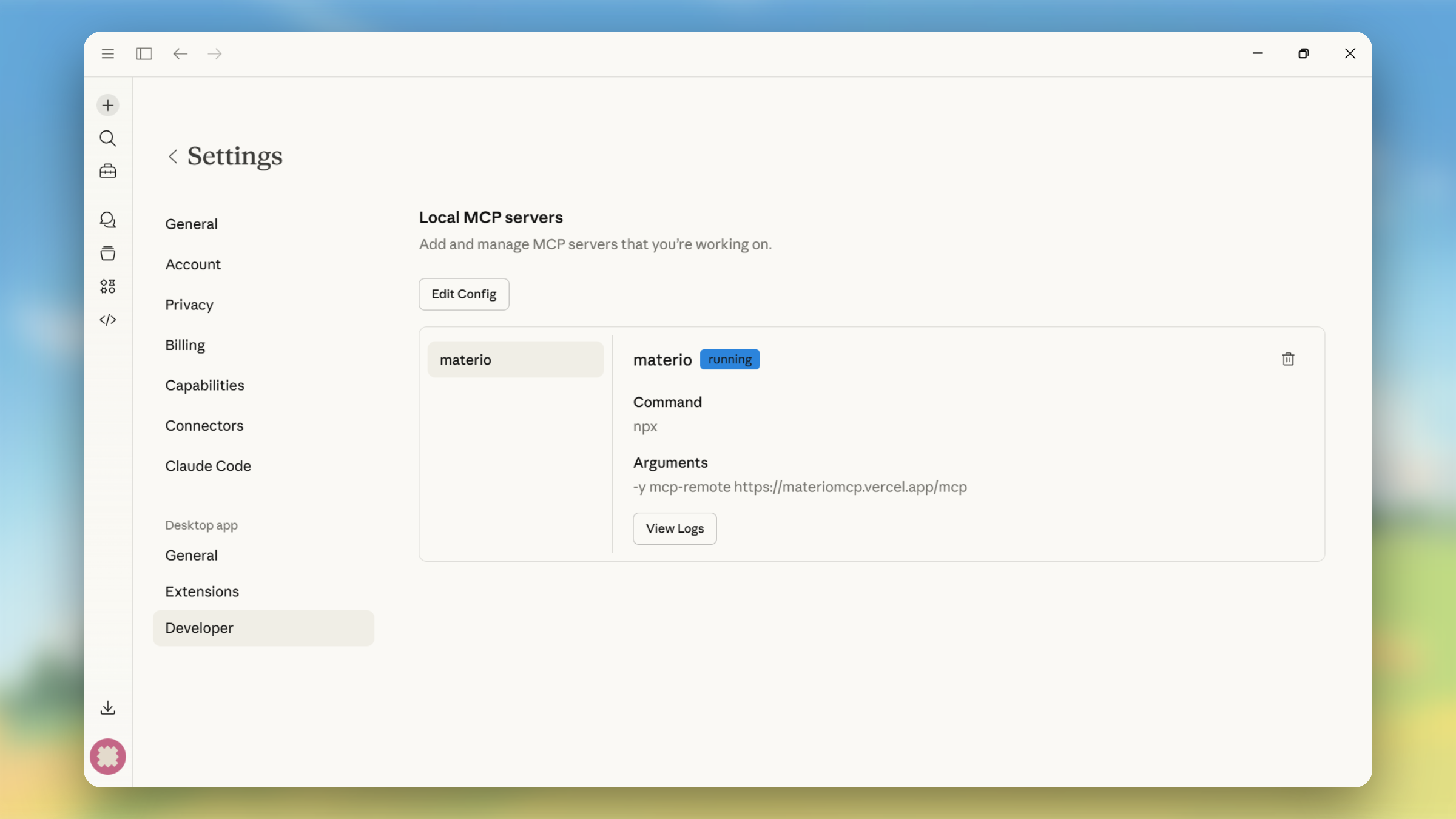
Alternatively, you can open the file directly from its default location:
- Windows:
%APPDATA%\Claude\claude_desktop_config.json - macOS:
~/Library/Application Support/Claude/claude_desktop_config.json
Inside the config, locate the mcpServers object and add the following entry:
"materio": {
  "command": "npx",
  "args": [
    "-y",
    "mcp-remote",
    "https://materiomcp.vercel.app"
  ]
}
Save the file, then restart Claude Desktop. The Materio MCP server should now appear in your active connectors.
What You Can Do After Connecting
Once connected, you don’t need any special commands. Just have a normal conversation. Here are some things you can ask:
Browse the library
“What resources are available for Semester 4?” “Show me everything Materio has for Computer Networks.”
Study from your notes
“Explain deadlocks using my Operating Systems notes.” “Summarize the Greedy Algorithms chapter from DAA.” “What does my DBMS material say about normalization?”
Prepare for exams
“Give me practice questions from the Semester 3 DBMS question bank.” “What are the important topics in the Software Engineering question bank?” “Pull up the previous year papers for Operating System.”
Quick lookups
“Find anything on Laplace Transform in Maths-2.” “Search for Inheritance in the Java subject.”
The AI will search the library, fetch the relevant PDF, and answer based on what’s actually in your course material.
Reading a PDF and Need Help?
You don’t need to start from scratch every time. Every PDF open in Materio has a Share button. Clicking it gives you the option to Open in ChatGPT or Open in Claude.
Either option redirects you to the respective AI with a pre-filled prompt that includes the PDF name, subject, and semester. The AI then uses the MCP connector to pull up that exact resource and you can ask questions immediately, with no setup required on your end.
Troubleshooting
Claude isn’t using Materio even after setup. Make sure you restarted Claude Desktop after running the configurator script. MCP connectors only load on startup.
I’m on the free Claude tier and the connector isn’t showing. Free tier users are limited to one active MCP connector. If you already have another connector enabled, you’ll need to disable it first.
The ChatGPT GPT link isn’t opening. Make sure you’re logged into ChatGPT before opening the link. The Materio GPT requires an active ChatGPT account.
The AI says it can’t find a resource. Try rephrasing with the exact subject name and semester number. For example, instead of “Java notes”, try “Semester 3 Object Oriented Programming with Java chapters”.